Documents Manager
The Documents Manager (also referred to as the File Manager) is the central digital-asset library for a Stack9 Experience tenant. Users upload, organise, search, preview, replace, trash, restore, and permanently purge images, video, and generic files — then reuse those same assets across Pages, Email, Marketing, and any entity form through drop-in pickers.
Why a central asset library
Most marketing stacks accumulate a separate uploader per feature: one in the CMS, one in the email builder, one on each form. The result is the same logo uploaded eleven times, no shared alt text, and no way to answer "where is this image used?".
The Documents Manager replaces all of them with one library:
- ✅ One library, many consumers — an asset uploaded once is selectable from a Pages image field, a rich-text editor, and any entity file field. No per-feature re-upload.
- ✅ Direct-to-storage uploads — bytes travel straight from the browser to object storage using a signed URL, so large files never transit the application server.
- ✅ Organisation without a folder trap — a hierarchical tag tree behaves like folders, but an asset can live in more than one place.
- ✅ Safe deletion — trash is reversible and private; permanent purge is a separate, explicit, re-authorised step.
- ✅ Scoped to your Business Unit — every read narrows to the active library, and every write is stamped and re-validated on the server.
Architecture at a glance
Two cooperating systems keep metadata and bytes in step:
| Concern | Owner | Notes |
|---|---|---|
| File and tag metadata | Stack9 Experience entities | Files, tags, and saved searches are Stack9 entities, reached through the named-query library, so screen permissions and query allow-lists stay in force. |
| Object lifecycle | Object-storage broker | Signs upload and preview URLs, moves objects into and out of trash, batch-deletes, and copies. Exposed as the /file_manager/* REST endpoints. The broker holds no metadata — it is a thin storage gateway. |
The browser never calls the broker directly. It invokes Stack9 named queries that proxy to the broker, which is what keeps authorisation in one place.
API Reference: object lifecycle is served by /file_manager/sign-put-url, /file_manager/trash-object, /file_manager/restore-object, /file_manager/sign-trash-preview-urls, and /file_manager/purge-objects — see the File Manager API for full request and response schemas. Metadata operations run through the Stack9 named-query library rather than a REST surface.
Supported asset types
| Category | What it covers | Handling |
|---|---|---|
| Image | Any image/* type | Inline thumbnails, full-size Quick Look preview, dimensions probed on upload. After the upload completes the asset is briefly processing while server-side image processing runs, then becomes ready. |
| Video | Any video/* type | A first-class filter category. Videos are stored, organised, searched, and downloaded like any other asset. |
application/pdf | Treated as a document, with an icon preview. | |
| SVG | image/svg+xml | Technically an image type, and also available as its own filter. |
| Document | Everything that is neither image nor video | Office documents, archives, and similar. Ready immediately after upload — no processing step. |
The Documents Manager stores and organises video. It does not ship an inline player, transcoding, or automatic poster-frame generation today; Quick Look offers "open in new tab". Plan for an external player or streaming provider if you need playback inside the back office.
Upload gates. Before bytes leave the browser, uploads are validated: a hard size ceiling (100 MB by default), a blocked list of executable types, and an overridable warning for unusually large image dimensions (above 8192 px). Operating-system junk files such as .DS_Store and Thumbs.db are stripped silently.
The size ceiling, dimension warning, upload concurrency (four parallel uploads by default), and batch limits are the platform's current defaults rather than contractual guarantees. Confirm the effective values for your environment before you design an ingestion process around them.
The upload flow
Uploads use a signed-URL, direct-to-storage pattern. The application server is only ever asked to authorise and record the upload — it never carries the bytes.
Practical consequences worth knowing:
- Progress is real. Uploads report byte-level progress per file, and the queue runs several uploads in parallel with an in-memory preview thumbnail shown immediately.
- Failures do not leave debris. If the storage PUT or the confirmation fails, the freshly created metadata record is removed, so no record ever points at a missing object.
- The bucket must allow browser uploads. Cross-origin policy has to permit
PUTfrom the application origin; the interface reports this specific failure clearly when it does not. - Many entry points, one pipeline. The upload menu, drag-and-drop from the desktop, clipboard paste, whole-folder drops, and dropping a remote URL all feed the same queue.
Organisation: tag folders
There is no folder entity. Organisation is modelled as a hierarchical tag tree: tags nest under a parent, carry a slug and a sort order, and relate to files many-to-many.
That choice buys two things a folder tree cannot:
- An asset can be in several places at once — a hero image can be tagged both
Campaigns/SpringandBrand/Approvedwithout duplication. - Reorganising is metadata-only — moving assets between tag folders never moves bytes or changes a URL.
When a user drags an entire directory into the library, each folder in the path is mapped top-down to a chain of tags, reusing existing sibling tags and creating the ones that are missing, so uploaded files arrive already filed under their leaf folder.
Files can be dragged onto tags, and bulk actions add, remove, or move a selection between tag folders.
Search, filters, and smart views
Finding an asset is treated as a first-class task rather than a scroll:
- Text search across asset names.
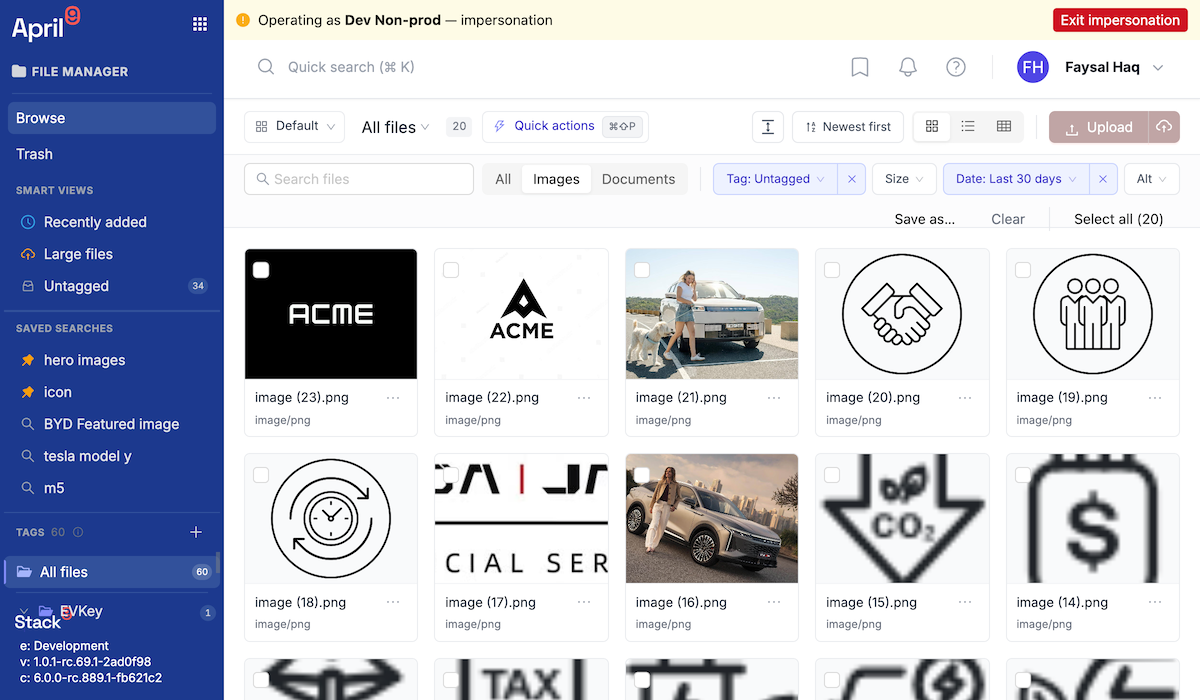
- Filter chips compose asset category, file-size buckets, date ranges (today, last 7 days, last 30 days, or a custom range), tagged or untagged, and whether alt text is present.
- Type-narrowed pickers — a picker can restrict itself to a single type, so an SVG-only or PDF-only field never shows anything else.
- Sorting by name, creation date, size, or type.
- Saved searches capture a filter combination under a name, can be pinned to the sidebar, and are personal to the user who created them. They behave as smart views: a saved query re-evaluated every time you open it, not a static collection.
Filters are serialised into a server-side query with a strict field allow-list, so a crafted filter cannot reach columns it was never meant to touch. Views are also available as a grid, a column browser, and a list, with virtualised rendering for very large libraries and a command palette for keyboard-driven navigation.
Metadata and accessibility
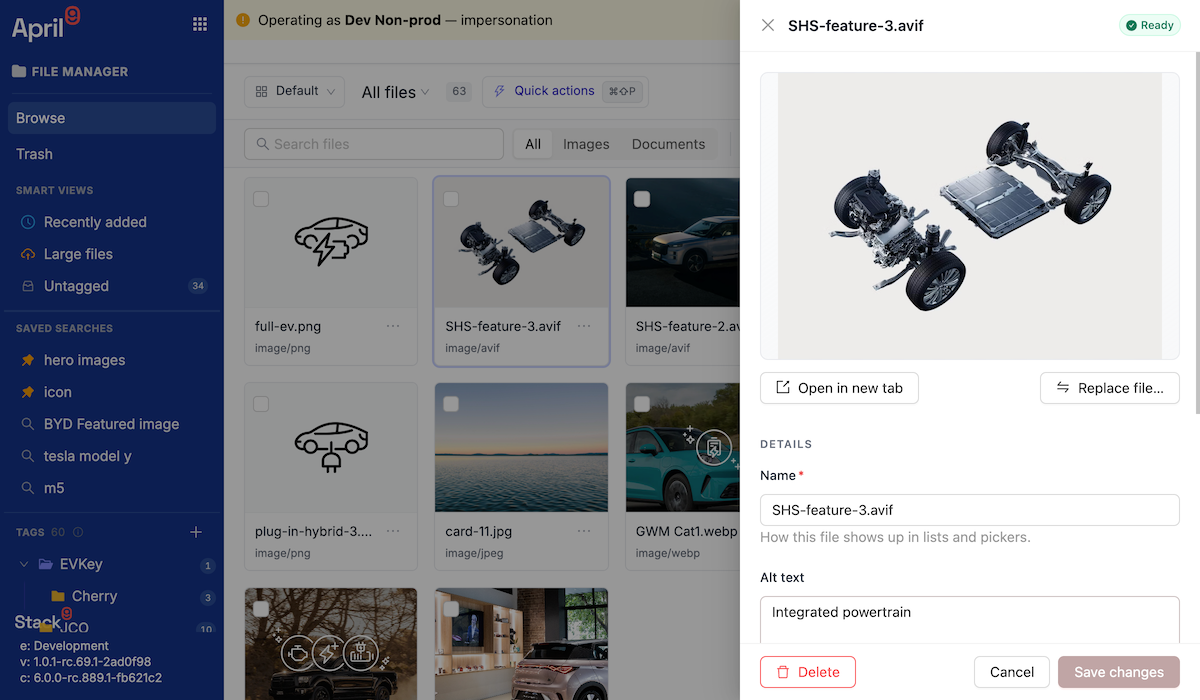
Each asset carries editable metadata — display name, alt text, and tags — alongside system fields such as original filename, MIME type, size, pixel dimensions, public URL, content hash, and the standard Stack9 audit trail.
Alt text is deliberately more than a nice-to-have: inserting an image into rich text requires it, which is the cheapest accessibility control a content platform can enforce. Display names are deduplicated the way a desktop does, so uploading photo.jpeg twice yields photo (2).jpeg rather than an overwrite or an error.
Deduplication by content hash
Every upload is hashed with SHA-256 in a background worker before it is sent. The hash is stored on the record and used to answer one question: do we already have these exact bytes in this library? If so, the interface offers the existing asset instead of creating a duplicate.
This is a deduplication aid, not an integrity check — it detects identical files, it does not verify that stored bytes are undamaged. Very large files (above 200 MB) skip hashing and are stored without a hash.
Trash, restore, and purge
Deletion is a two-stage model, because an asset library is exactly the place where an accidental delete is expensive.
Trash (soft delete). The object is moved to a private trash prefix that bucket policy denies public access to, and the record is marked deleted. The canonical public URL is intentionally left untouched, which is what makes restore clean. The two steps are ordered defensively: if the object move fails, the record is not deleted; if the record update fails after the move, the object is moved back.
Restore. A single server-side action re-authorises the asset's Business Unit, moves the object back out of trash, and clears the deleted flag. The restore target is decided on the server and never sent by the browser.
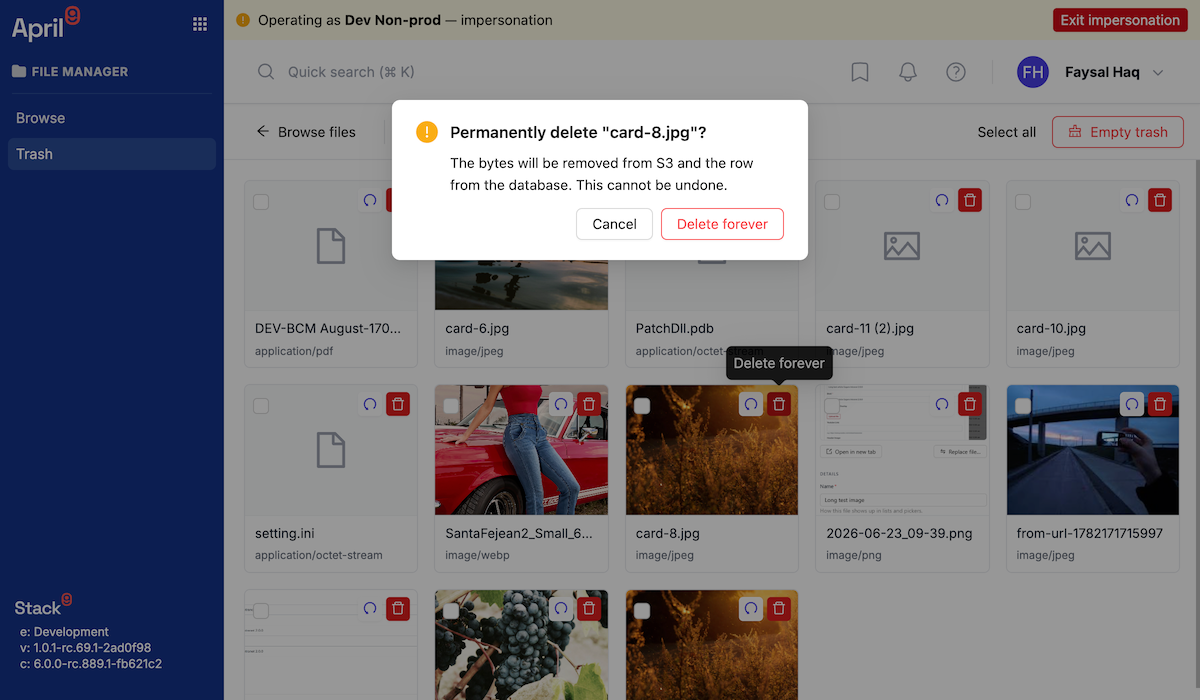
Purge (hard delete). Purging permanently removes trashed assets. Objects are deleted in batches, and only for objects storage confirmed as gone is the record removed. The operation refuses records that are not in the trash and re-authorises each asset's own Business Unit, so a single refused shared asset never aborts an "empty trash" run — partial failures are reported per asset.
Because trashed objects are private, previews inside the trash view use short-lived signed preview URLs, refreshed automatically so a long-open trash window never shows broken thumbnails. Live assets simply use their public URL. Recent destructive actions also offer an undo toast for immediate reversal.
Replacing bytes
Marketing assets get corrected: a logo is re-exported, a price panel changes, a photo is re-cropped at source. Replace file overwrites the bytes behind an existing asset while keeping the same record: the same asset id, the same public URL, the same tags, and the same alt text. Size, MIME type, and content hash are updated; everything downstream keeps pointing at the same asset.
This is the byte-replacement path, and it is the reason the platform distinguishes a metadata edit from a content change.
The image pipeline specifies an explicit File Revision — a numeric version on the asset that starts at 1 and increments only when bytes are replaced, so transformed image URLs and CDN cache keys change on a byte replacement but not on a metadata-only edit.
File Revision is not implemented today. Current behaviour relies on the content hash and update timestamp. If you replace bytes on a heavily cached asset today, plan for CDN cache invalidation explicitly, and do not build integrations against a file_revision field until it ships.
Assets can also be copied into another authorised library, which creates fresh bytes and a fresh record in the target scope. Source tags are not carried across and the source asset is never modified — consistent with the Business Unit rule that ownership is immutable and sharing means copying.
Business Unit scoping
The Documents Manager has the deepest Business Unit implementation in the platform. Every file and every tag carries an owning Business Unit plus a shared marker, and reads resolve to the union of: assets in the active library, tenant-owned Shared Asset Library assets, and Default-owned assets when the membership is authorised for Default.
- A file may only reference a tag that is shared or in the file's own scope, so tag trees cannot leak names across units.
- Only a membership with tenant-wide authority may modify the Shared Asset Library.
- Storage, cache, and URL partitions are per scope. Tenants that only ever use the Default Business Unit keep their original, unprefixed storage keys — no migration, no changed URLs.
- Switching library clears cached results, so one unit's assets never render inside another.
See Business Units for the full model.
Drop-in pickers
The Documents Manager ships its selection interface as reusable pickers, so every part of the platform uses the same library rather than a bespoke uploader.
| Consumer | Picker | Behaviour |
|---|---|---|
| Pages | Image and file pickers | Backs the Pages image field. Selection yields the asset's URL, alt text, and intrinsic dimensions, which the Pages image pipeline then layers editorial intent on top of. |
| Email and Marketing rich text | Rich-text image picker | Wired into the rich-text editor used by email templates and marketing content. Inherits the alt-text requirement, so every embedded image carries alt text. |
| Any entity form | File-field replacement | A drop-in replacement for the framework file field, enabled per field, supporting multiple selection and image-only mode. |
Images embedded in rich text render from the editor's own image attributes and do not carry the Pages Image Variant edits (focal point, crop, caption overrides). Art-directed cropping applies to Pages image fields, not to images inserted into rich-text bodies.
Relationship to the Pages image pipeline
The Documents Manager owns the source of truth; Pages owns rendering intent. The vocabulary matters:
- Original Asset URL — the asset's own URL. Used for downloads, fonts, ZIP exports, and "copy original link".
- Transformed Image URL — a delivery URL that applies resize, crop, quality, and format to the Original Asset URL for rendering only.
- Image Variant — a named rendering intent for one source image (mobile hero, desktop hero, card thumbnail, social image) carrying aspect, crop, focal point, and zoom.
- File Revision — the planned cache-busting version described above.
Transformed Image URLs are produced by a separate image-delivery service. Production URL signing is on the hardening track, and transformed delivery is not universally wired into the Documents Manager's own thumbnails yet — those fall back to the asset's public URL when the transform service is not configured. Treat transformed-URL contracts as subject to change and confirm what is live in your target release.
Image Variants and Breakpoints are covered in Content Management.
Best practices
- Establish the tag tree before you bulk-upload. Folder drops create tags from directory names, so a tidy source directory produces a tidy library.
- Require alt text as a house rule, not just where the platform enforces it. It is enforced in rich text; make it a habit everywhere.
- Prefer replace over re-upload for corrected assets, so every reference stays valid — and invalidate your CDN cache when you do.
- Use saved searches as team views — "images missing alt text", "untagged uploads this week" — and pin them.
- Keep the Shared Asset Library small and governed. Shared means every Business Unit can build on it; treat additions as brand decisions.
- Empty the trash on a schedule. Trash is a safety net, not storage tiering, and purge is deliberately irreversible.
Real-world example
A dealer group's marketing team uses the Documents Manager to:
- Bulk-load a campaign shoot by dropping the photographer's folder structure, which becomes a matching tag tree.
- Deduplicate on ingest — repeated hero shots are detected by content hash and reused instead of duplicated.
- Publish once, use everywhere — the same hero is picked into a Pages landing page, an email template, and a form banner.
- Correct a price panel mid-campaign by replacing bytes on the existing asset, so every reference updates without an editorial sweep.
- Keep dealership imagery separate while approved brand assets live in the Shared Asset Library.
Next steps
- Content Management — Image Variants, Breakpoints, and how Pages renders assets
- Business Units — libraries, the Shared Asset Library, and asset scoping
- Email & Communications — using assets in email templates
- Platform Architecture — storage, presigned URLs, and soft-delete behaviour platform-wide
The Documents Manager turns scattered per-feature uploaders into one governed asset library — with direct-to-storage uploads, reversible deletion, and the same picker everywhere content is created.