Connectors
Connectors enable Stack9 to integrate with external services, APIs, databases, and cloud platforms. They provide a unified, configuration-driven way to connect to third-party systems without writing integration code.
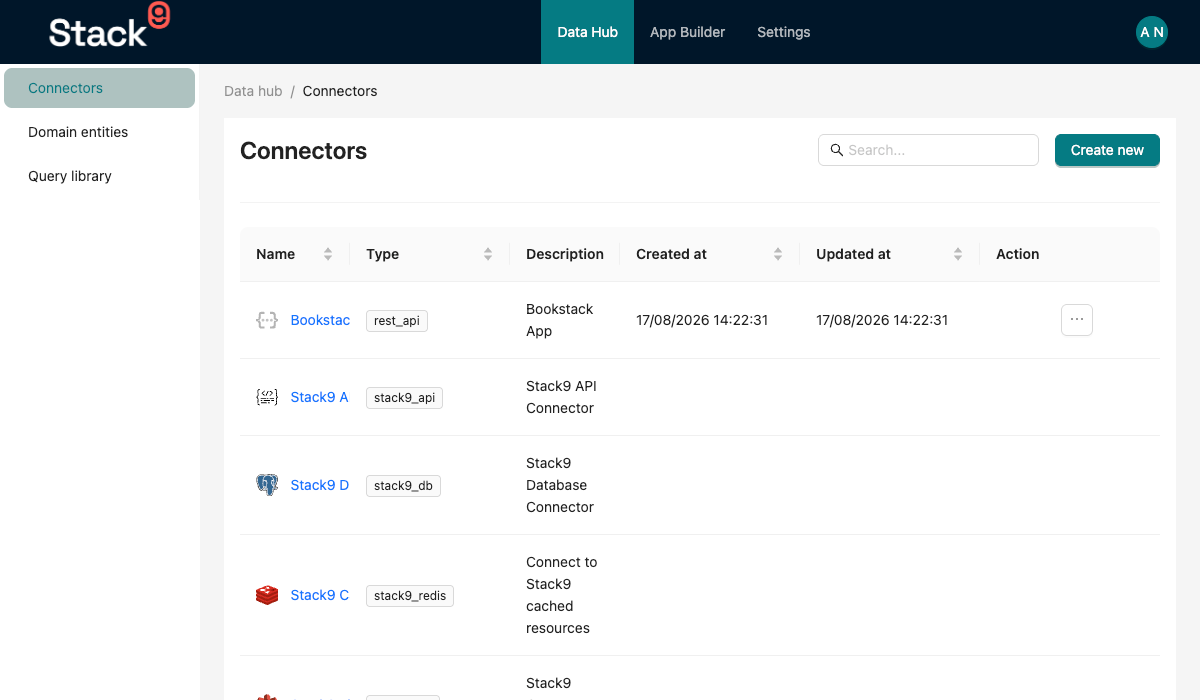
What are Connectors?
Connectors are JSON configuration files that define how to connect to external services:
- REST APIs - Connect to any HTTP/HTTPS API
- Databases - Connect to PostgreSQL, MongoDB, MSSQL, Redis
- Cloud Services - Connect to AWS S3, Azure Blob, DynamoDB, OpenSearch
- Third-party APIs - Connect to SendGrid, GraphQL endpoints, OpenAPI services
When you define a connector, Stack9 automatically:
- ✅ Manages authentication and credentials
- ✅ Handles connection pooling
- ✅ Secures sensitive data with environment variables
- ✅ Provides type-safe access in queries and actions
- ✅ Manages timeouts and retries
Why Use Connectors?
Without Connectors (Manual Integration)
// Scattered API clients, repeated configuration
import axios from 'axios';

const client = axios.create({
  baseURL: process.env.EXTERNAL_API_URL,
  headers: {
    'Authorization': `Bearer ${process.env.API_TOKEN}`,
    'Accept': 'application/json'
  }
});

// Repeated in multiple files
const response = await client.get('/customers');
With Connectors (Stack9 Approach)
{
  "name": "External Service",
  "key": "external_service",
  "type": "rest_api",
  "configuration": {
    "baseUrl": "%%APP_EXTERNAL_API_URL%%",
    "headers": {
      "Authorization": "Bearer %%APP_API_TOKEN%%",
      "Accept": "application/json"
    }
  }
}
Benefits:
- ✅ Centralized: All API configurations in one place
- ✅ Secure: Credentials never hardcoded
- ✅ Reusable: Use in queries, automations, and hooks
- ✅ Environment-aware: Different configs per environment
- ✅ Type-safe: TypeScript types generated automatically
Connector File Structure
Connectors are defined in src/connectors/{connector_name}.json:
{
  "key": "unique_connector_key",
  "name": "Human Readable Name",
  "description": "What this connector does",
  "type": "connector_type",
  "module": "module_name",  // Optional
  "configuration": {
    // Type-specific configuration
  }
}
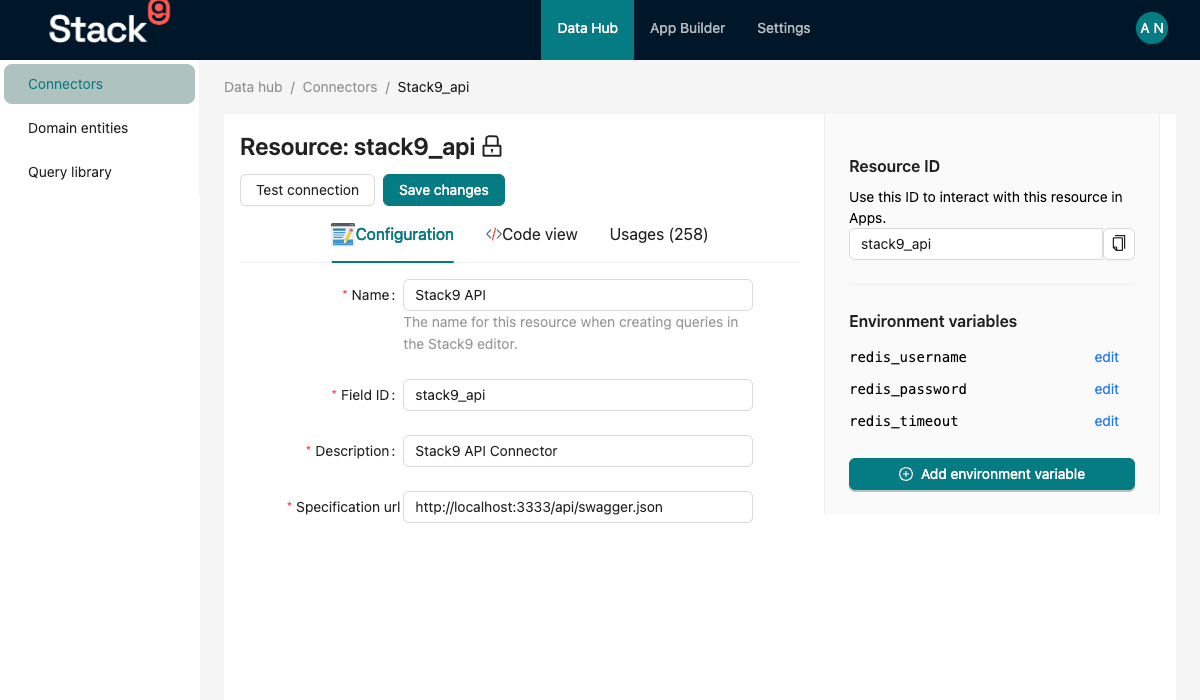
Native Connectors
Stack9 provides built-in connectors that require no configuration:
stack9_api
Access Stack9's own entity APIs.
{
  "name": "Stack9 API",
  "key": "stack9_api",
  "type": "stack9_api",
  "description": "Native Stack9 API connector"
}
Usage in queries:
{
  "key": "getcustomerlist",
  "connector": "stack9_api",
  "queryTemplate": {
    "method": "post",
    "path": "/customer/search",
    "bodyParams": "{ \"$where\": { \"is_active\": true } }"
  }
}
stack9_db
Direct access to Stack9's database (PostgreSQL or MSSQL).
{
  "key": "stack9_db",
  "name": "Stack9 Database",
  "type": "stack9_db",
  "description": "Native Stack9 database connector",
  "configuration": {
    "client": "pg"  // or "mssql" for SQL Server
  }
}
Use in entity hooks with Knex:
await this.context.db.entity.knex('customers')
  .where({ is_active: true })
  .select('*');
Connector Types
1. REST API Connectors
Connect to any REST API service.
{
  "name": "Address Lookup Service",
  "key": "address_lookup_service",
  "description": "Experian address lookup API",
  "type": "rest_api",
  "configuration": {
    "baseUrl": "https://api.experianaperture.io",
    "headers": {
      "Auth-Token": "%%APP_EXPERIAN_ADDRESS_LOOKUP_TOKEN%%"
    },
    "authentication": {}
  }
}
Configuration Options:
baseUrl(required): Base URL for all API callsheaders(optional): Default headers for all requestsauthentication(optional): Authentication configuration
Authentication Types:
Basic Auth
{
  "authentication": {
    "type": "basic",
    "username": "%%APP_API_USERNAME%%",
    "password": "%%APP_API_PASSWORD%%"
  }
}
Bearer Token
{
  "authentication": {
    "type": "bearer",
    "bearer": "%%APP_API_TOKEN%%"
  }
}
API Key
{
  "authentication": {
    "type": "apiKey",
    "apiKey": "%%APP_API_KEY%%"
  }
}
Custom Authorization
{
  "headers": {
    "Authorization": "Basic %%APP_WESTPAC_LOTTERY_SECRET_KEY%%"
  }
}
2. Amazon OpenSearch
Note: Amazon OpenSearch is defined in the ConnectorType enum but not validated in ConnectorSchemaValidator. Support may be limited.
Connect to AWS OpenSearch for full-text search and analytics.
{
  "key": "opensearch",
  "name": "OpenSearch",
  "description": "AWS OpenSearch service",
  "type": "amazon_opensearch",
  "configuration": {
    // Configuration schema not defined in validator
    // Check with Stack9 support for proper configuration
  }
}
3. Amazon S3
Connect to AWS S3 for file storage.
{
  "name": "Document Storage",
  "key": "document_storage",
  "type": "amazon_s3",
  "configuration": {
    "accessKeyId": "%%APP_AWS_S3_ACCESS_KEY_ID%%",
    "secretAccessKeyId": "%%APP_AWS_S3_SECRET_ACCESS_KEY%%",
    "bucketName": "%%APP_S3_BUCKET_NAME%%",
    "s3ForcePathStyle": false
  }
}
Configuration:
accessKeyId: AWS access keysecretAccessKeyId: AWS secret keybucketName: S3 bucket namearn(optional): Bucket ARNs3ForcePathStyle(optional): Use path-style URLsisCustomS3Endpoint(optional): For S3-compatible servicesbaseUrl(optional): Custom S3 endpoint URL
4. Azure Blob Storage
Connect to Azure Blob Storage for file storage.
{
  "name": "Azure Documents",
  "key": "azure_documents",
  "type": "azure_blob",
  "configuration": {
    "connectionString": "%%APP_AZURE_CONNECTION_STRING%%",
    "containerName": "%%APP_AZURE_CONTAINER_NAME%%"
  }
}
5. PostgreSQL Database
Connect to external PostgreSQL databases.
{
  "name": "External Database",
  "key": "external_db",
  "type": "postgresql",
  "configuration": {
    "host": "%%APP_DB_HOST%%",
    "port": 5432,
    "databaseName": "%%APP_DB_NAME%%",
    "databaseUsername": "%%APP_DB_USERNAME%%",
    "databasePassword": "%%APP_DB_PASSWORD%%",
    "sslEnabled": true
  }
}
Alternative with Connection String:
{
  "configuration": {
    "connectionString": "%%APP_DB_CONNECTION_STRING%%"
  }
}
6. MongoDB
Connect to MongoDB databases.
{
  "name": "MongoDB Analytics",
  "key": "mongodb_analytics",
  "type": "mongodb",
  "configuration": {
    "host": "%%APP_MONGO_HOST%%",
    "port": 27017,
    "databaseName": "%%APP_MONGO_DB_NAME%%",
    "databaseUsername": "%%APP_MONGO_USERNAME%%",
    "databasePassword": "%%APP_MONGO_PASSWORD%%"
  }
}
7. Redis
Connect to Redis for caching and sessions.
{
  "name": "Redis Cache",
  "key": "redis_cache",
  "type": "redis",
  "configuration": {
    "host": "%%APP_REDIS_HOST%%",
    "port": 6379,
    "password": "%%APP_REDIS_PASSWORD%%"
  }
}
8. GraphQL
Connect to GraphQL APIs.
{
  "name": "GraphQL Service",
  "key": "graphql_service",
  "type": "graphql",
  "configuration": {
    "baseUrl": "%%APP_GRAPHQL_ENDPOINT%%",
    "headers": {
      "Authorization": "Bearer %%APP_GRAPHQL_TOKEN%%"
    },
    "authentication": {
      "type": "bearer",
      "token": "%%APP_GRAPHQL_TOKEN%%"
    }
  }
}
9. SendGrid
Connect to SendGrid for email delivery.
{
  "name": "Email Service",
  "key": "email_service",
  "type": "sendgrid",
  "configuration": {
    "accessToken": "%%APP_SENDGRID_API_KEY%%"
  }
}
10. OpenAPI
Connect to services with OpenAPI specifications.
{
  "name": "OpenAPI Service",
  "key": "openapi_service",
  "type": "open_api",
  "configuration": {
    "specificationUrl": "https://api.example.com/openapi.json",
    "basePath": "/v1",
    "customHeaders": {
      "X-API-Version": "2024-01-01"
    },
    "authentication": {
      "type": "apiKey",
      "apiKey": "%%APP_OPENAPI_KEY%%"
    }
  }
}
11. Amazon DynamoDB
Note: Amazon DynamoDB is defined in the ConnectorType enum but not validated in ConnectorSchemaValidator. Support may be limited.
Connect to AWS DynamoDB.
{
  "key": "dynamodb",
  "name": "DynamoDB",
  "type": "amazon_dynamodb",
  "configuration": {
    // Configuration schema not defined in validator
    // Check with Stack9 support for proper configuration
  }
}
12. Elasticsearch
Connect to Elasticsearch clusters.
{
  "name": "Elasticsearch",
  "key": "elasticsearch",
  "type": "elastic_search",
  "configuration": {
    "nodeOrCloudId": "%%APP_ELASTICSEARCH_NODE%%",
    "auth": {
      "type": "basic",
      "username": "%%APP_ELASTICSEARCH_USERNAME%%",
      "password": "%%APP_ELASTICSEARCH_PASSWORD%%"
    }
  }
}
Environment Variables
Use %%VARIABLE_NAME%% syntax to inject environment variables securely.
Variable Naming Convention
# .env file
APP_EXTERNAL_API_URL=https://api.example.com
APP_API_TOKEN=secret_token_here
APP_AWS_S3_BUCKET_NAME=my-documents
In Connector Configuration
{
  "configuration": {
    "baseUrl": "%%APP_EXTERNAL_API_URL%%",
    "headers": {
      "Authorization": "Bearer %%APP_API_TOKEN%%"
    }
  }
}
Benefits:
- 🔒 Secrets never committed to version control
- 🌍 Different values per environment (dev, staging, prod)
- 🔄 Easy rotation without code changes
- ✅ Validated at startup
Using Connectors in Query Library
Reference connectors in your queries:
{
  "key": "lookup_address",
  "name": "lookupAddress",
  "connector": "address_lookup_service",
  "queryTemplate": {
    "method": "get",
    "path": "/search",
    "queryParams": {
      "query": "{{searchTerm}}"
    }
  },
  "userParams": {
    "searchTerm": ""
  }
}
When executed, Stack9:
- Resolves the connector configuration
- Injects environment variables
- Applies authentication
- Merges headers
- Executes the request
Using Connectors in Automations
Use connectors in custom action types:
// action-types/fetch-external-data.ts
export class FetchExternalData extends CustomFunction {
  async exec(): Promise<ActionTypeResponse> {
    // Use connector through query library
    const result = await this.context.services.query.execute(
      'lookup_address',
      { searchTerm: '123 Main St' }
    );

    return { success: true, data: result };
  }
}
Using Connectors in Entity Hooks
Access connector data in hooks:
export class ValidateAddress extends CustomFunction {
  async exec(): Promise<CustomFunctionResponse> {
    const { entity } = this.context;

    // Validate address using external service
    const addressValidation = await this.context.services.query.execute(
      'lookup_address',
      { searchTerm: entity.address }
    );

    if (!addressValidation.valid) {
      return {
        valid: false,
        errors: [{
          field: 'address',
          message: 'Address not found'
        }]
      };
    }

    return { valid: true, entity };
  }
}
Real-World Examples
Example 1: Address Validation Service
{
  "name": "Address Lookup Service",
  "key": "address_lookup_service",
  "description": "Experian address lookup API",
  "type": "rest_api",
  "configuration": {
    "baseUrl": "https://api.experianaperture.io",
    "headers": {
      "Auth-Token": "%%APP_EXPERIAN_ADDRESS_LOOKUP_TOKEN%%"
    }
  }
}
Query using this connector:
{
  "key": "validate_address",
  "connector": "address_lookup_service",
  "queryTemplate": {
    "method": "get",
    "path": "/address/search/v1/autocomplete",
    "queryParams": {
      "country": "AUS",
      "query": "{{address}}"
    }
  }
}
Example 2: Payment Gateway
{
  "name": "Payment Gateway",
  "key": "payment_gateway",
  "type": "rest_api",
  "configuration": {
    "baseUrl": "%%APP_PAYMENT_GATEWAY_URL%%",
    "headers": {
      "Authorization": "Basic %%APP_PAYMENT_GATEWAY_SECRET%%",
      "Accept": "application/json",
      "Content-Type": "application/json"
    }
  }
}
Example 3: Document Storage
{
  "name": "Document Storage",
  "key": "document_storage",
  "type": "amazon_s3",
  "configuration": {
    "accessKeyId": "%%APP_AWS_S3_ACCESS_KEY_ID%%",
    "secretAccessKeyId": "%%APP_AWS_S3_SECRET_ACCESS_KEY%%",
    "bucketName": "customer-documents-prod"
  }
}
Use in action type:
export class UploadDocument extends CustomFunction {
  async exec(): Promise<ActionTypeResponse> {
    const { documentId, fileBuffer } = this.params;

    // Stack9 handles S3 connection through connector
    const s3Key = `documents/${documentId}.pdf`;
    await this.context.services.storage.upload(
      'document_storage',
      s3Key,
      fileBuffer
    );

    return { success: true, key: s3Key };
  }
}
Best Practices
1. Use Descriptive Names
{
  "key": "address_lookup_service",    // ✅ Clear purpose
  "key": "api1"                       // ❌ Unclear
}
2. Always Use Environment Variables
{
  "baseUrl": "%%APP_API_URL%%",              // ✅ Secure
  "baseUrl": "https://api.example.com"       // ❌ Hardcoded
}
3. Add Descriptions
{
  "description": "Experian address lookup API for validating Australian addresses"  // ✅ Helpful
}
4. Organize Headers Logically
{
  "headers": {
    "Accept": "application/json",
    "Content-Type": "application/json",
    "Authorization": "Bearer %%APP_TOKEN%%",
    "X-Custom-Header": "value"
  }
}
5. Use Consistent Naming
# Environment variables
APP_{SERVICE}_{RESOURCE}_{PROPERTY}

# Examples
APP_SENDGRID_API_KEY
APP_AWS_S3_BUCKET_NAME
APP_PAYMENT_GATEWAY_SECRET_KEY
6. Document Authentication Requirements
{
  "description": "Westpac Lottery Service - Requires Basic Auth with base64 encoded credentials"
}
7. Test Connector Configuration
Before deploying, verify:
- ✅ All environment variables are set
- ✅ Authentication works
- ✅ Base URL is correct
- ✅ Headers are properly formatted
Common Patterns
Multi-Environment Configuration
# .env.development
APP_API_URL=https://api-dev.example.com
APP_API_TOKEN=dev_token

# .env.production
APP_API_URL=https://api.example.com
APP_API_TOKEN=prod_token
Same connector definition works across all environments:
{
  "configuration": {
    "baseUrl": "%%APP_API_URL%%",
    "headers": {
      "Authorization": "Bearer %%APP_API_TOKEN%%"
    }
  }
}
Retry Configuration
For unreliable APIs, configure retries in query:
{
  "connector": "external_api",
  "retryOptions": {
    "maxAttempts": 3,
    "backoff": "exponential",
    "retryOn": [408, 429, 500, 502, 503, 504]
  }
}
Timeout Configuration
Set timeouts to prevent hanging requests:
{
  "connector": "slow_api",
  "timeout": 30000  // 30 seconds
}
Troubleshooting
Connector Not Found
Error: Connector 'my_connector' not found
Solutions:
- Check the connector key matches exactly
- Ensure the file exists in
src/connectors/ - Restart the Stack9 application
Authentication Failure
Error: 401 Unauthorized
Solutions:
- Verify environment variable is set
- Check variable name spelling (%%APP_API_TOKEN%%)
- Confirm token is valid and not expired
- Test authentication separately with curl
Connection Timeout
Error: ETIMEDOUT or ECONNREFUSED
Solutions:
- Verify baseUrl is correct
- Check network connectivity
- Confirm service is running
- Check firewall rules
Environment Variable Not Replaced
Error: Seeing %%APP_VARIABLE%% in logs
Solutions:
- Ensure variable is defined in
.env - Restart application after adding variables
- Check variable name spelling matches exactly
Complete Schema Reference
For the complete, detailed schema reference for all connector types and their configurations, see:
- Connector Schema Reference - Authoritative schema definitions for all connector types and their configurations
- Query Library Schema Reference - Query templates for using connectors
Next Steps
Now that you understand Connectors, learn about:
- Query Library - Use connectors in queries
- Action Types - Use connectors in custom actions
- Automations - Trigger external APIs in workflows
- How-To: Integrate External APIs
Related guides
- Integrating External APIs — connect to third-party services