Apps
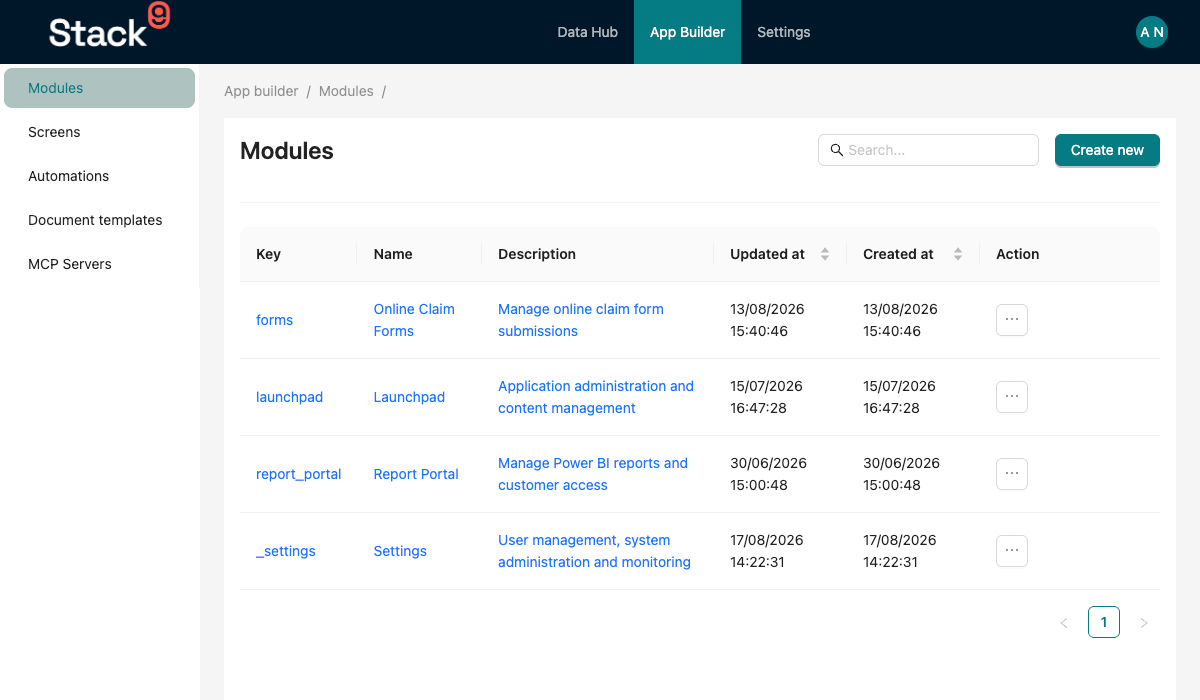
Apps are navigation modules that organize your Stack9 application into logical sections. Each app defines a sidebar menu structure, grouping related screens, entities, and features into cohesive units.
What are Apps?
Apps are JSON configuration files that:
- Define navigation structure - Organize screens into hierarchical menus
- Group related functionality - Bundle entities, screens, and workflows
- Control access - Set visibility (public vs internal)
- Customize appearance - Icons, themes, and ordering
- Enable modularity - Split large applications into manageable pieces
When you define an app, Stack9 automatically:
- ✅ Creates sidebar navigation
- ✅ Routes to screens
- ✅ Applies access controls
- ✅ Manages menu state
- ✅ Handles breadcrumbs
Why Use Apps?
Without Apps (Flat Navigation)
// All screens in one massive flat list
<Nav>
  <Link to="/customer-list">Customers</Link>
  <Link to="/sales-order-list">Sales Orders</Link>
  <Link to="/product-list">Products</Link>
  <Link to="/user-list">Users</Link>
  <Link to="/report-list">Reports</Link>
  // ... 100+ more links
</Nav>
With Apps (Organized Navigation)
{
  "name": "Customer Management",
  "key": "crm",
  "icon": "UserOutlined",
  "children": [
    {
      "key": "customers",
      "name": "Customers",
      "nodeType": "menuGroup",
      "children": [
        {
          "key": "customer_list",
          "name": "Customer List",
          "link": "/crm/customer-list"
        },
        {
          "key": "customer_matches",
          "name": "Possible Matches",
          "link": "/crm/matches"
        }
      ]
    }
  ]
}
Benefits:
- ✅ Organized: Logical grouping of related features
- ✅ Scalable: Easy to add new features
- ✅ Discoverable: Clear navigation hierarchy
- ✅ Maintainable: Change navigation in one place
- ✅ Secure: Control access by app
App File Structure
Apps are defined in src/apps/{app_key}.json:
{
  "name": "Human Readable Name",
  "key": "unique_app_key",
  "description": "What this app does",
  "nodeType": "appNode",
  "icon": "IconName",
  "theme": "default",
  "visibility": "PUBLIC | INTERNAL",
  "order": 10,
  "children": [
    // Navigation items
  ]
}
App Properties
For the complete, authoritative reference of all App properties, node types, and validation rules, see the App Schema Reference.
Core Properties Summary
| Property | Type | Required | Description |
|---|---|---|---|
name | string | Yes | Display name in navigation |
key | string | Yes | Unique identifier |
nodeType | string | Yes | Must be "appNode" for root level |
module | string | No | Module identifier |
order | number | No | Sort order in sidebar (lower first) |
description | string | No | App description |
icon | string | No | Icon name (Ant Design icons) |
visibility | string | No | Access level: "PUBLIC", "EXTERNAL", or "INTERNAL" |
theme | string | No | Theme identifier |
children | array | No | Navigation items |
Visibility Options
Apps support four visibility levels:
{
  "visibility": "PUBLIC"    // Shown in the console sidebar
}

{
  "visibility": "EXTERNAL"  // Shown in the console sidebar
}

{
  "visibility": "INTERNAL"  // Shown in the console sidebar (default)
}

{
  "visibility": "HIDDEN"    // Omitted from the console sidebar
}
Only HIDDEN changes behaviour. It marks an app that exists purely to group queries and screens consumed from outside the console, so its tile is omitted from GET /api/navigation.
HIDDEN is display only — it is not an access control. The app still gets its app_permissions row, and that permission is still enforced wherever the app's resources are used. Omitting the tile grants nothing and protects nothing;
use app permissions and user groups for access.
PUBLIC, EXTERNAL and INTERNAL are descriptive labels only and behave
identically.
Navigation Node Types
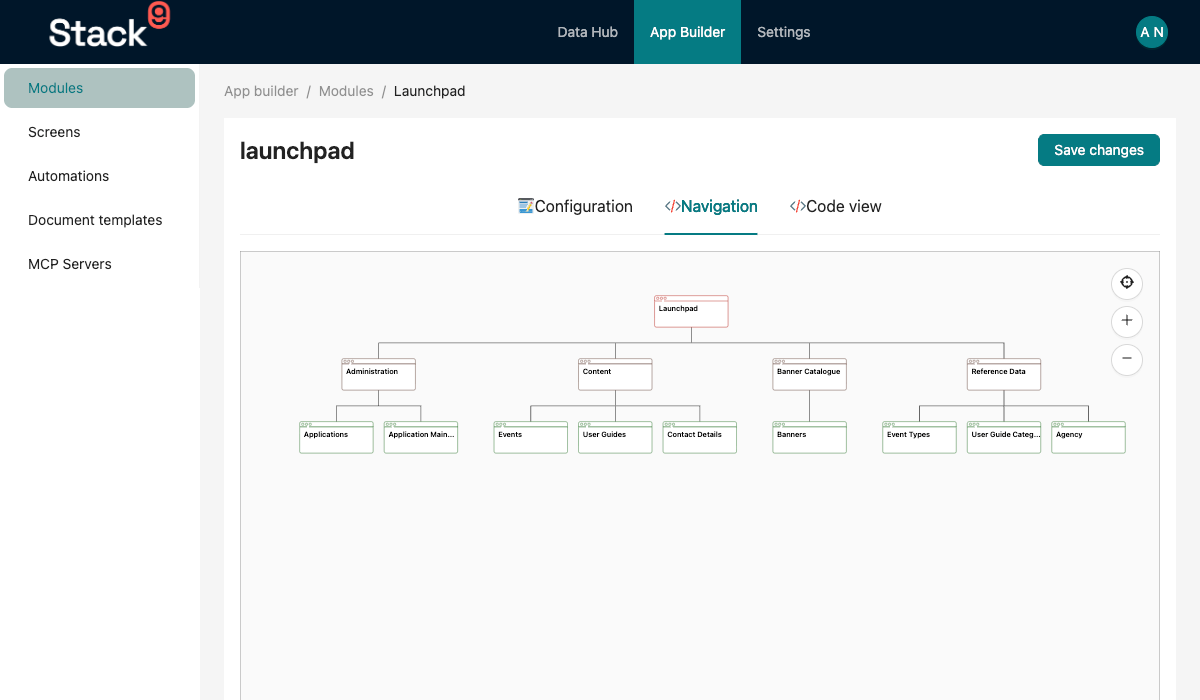
Stack9 supports three node types: "appNode", "menuGroup", and "link". For complete nesting rules and property requirements, see the App Schema Reference.
1. App Node (Root Level)
The app itself - must be at the root level with nodeType: "appNode".
{
  "name": "Customer Management",
  "key": "crm",
  "nodeType": "appNode",
  "icon": "UserOutlined",
  "children": [...]
}
2. Menu Group
Groups related links together with a collapsible submenu. Can appear at levels 2 and 3.
{
  "key": "customers",
  "name": "Customers",
  "nodeType": "menuGroup",
  "children": [
    {
      "key": "customer_list",
      "name": "Customer List",
      "nodeType": "link",
      "link": "/crm/customer-list"
    },
    {
      "key": "customer_merge_history",
      "name": "Merge History",
      "nodeType": "link",
      "link": "/crm/merge-history"
    }
  ]
}
3. Link
Direct navigation link to a screen. Can appear at levels 2, 3, and 4 (but level 4 can ONLY be links).
{
  "key": "customer_list",
  "name": "Customer List",
  "nodeType": "link",
  "link": "/crm/customer-list",
  "description": "View and manage all customers"
}
Real-World Example
CRM App
From a production Stack9 application:
{
  "name": "Customer Management",
  "key": "crm",
  "description": "Customer Management",
  "nodeType": "appNode",
  "icon": "UserOutlined",
  "theme": "default",
  "visibility": "PUBLIC",
  "children": [
    {
      "key": "keyword_search",
      "name": "Keyword Search",
      "nodeType": "link",
      "link": "/crm/keyword-search"
    },
    {
      "key": "customers",
      "name": "Customers",
      "nodeType": "menuGroup",
      "children": [
        {
          "key": "customer_list",
          "name": "Customer List",
          "nodeType": "link",
          "link": "/crm/customer-list"
        },
        {
          "key": "customer_possible_matches",
          "name": "Customer possible matches",
          "nodeType": "link",
          "link": "/crm/customer-possible-match/list"
        },
        {
          "key": "customer_merge_history",
          "name": "Customer merge history",
          "nodeType": "link",
          "link": "/crm/customer-merge-history"
        },
        {
          "key": "outbound_correspondence",
          "name": "Outbound correspondence",
          "nodeType": "link",
          "link": "/crm/outbound-corro/list"
        }
      ]
    },
    {
      "key": "club_list",
      "name": "Clubs",
      "nodeType": "link",
      "link": "/crm/club-list"
    },
    {
      "key": "advanced",
      "name": "Advanced",
      "nodeType": "menuGroup",
      "children": [
        {
          "key": "customer_bulk_updates",
          "name": "Customer bulk updates",
          "nodeType": "link",
          "link": "/crm/customer-bulk-update/list"
        },
        {
          "key": "dedup_job_request_history",
          "name": "Dedup job request history",
          "nodeType": "link",
          "link": "/crm/dedup-job-requests/list"
        }
      ]
    }
  ]
}
This creates a navigation structure like:
📊 Customer Management
  🔍 Keyword Search
  👥 Customers ▼
    • Customer List
    • Customer possible matches
    • Customer merge history
    • Outbound correspondence
  🎪 Clubs
  ⚙️ Advanced ▼
    • Customer bulk updates
    • Dedup job request history
Admin App
{
  "name": "Administration",
  "key": "admin",
  "description": "System administration",
  "nodeType": "appNode",
  "order": 999,
  "icon": "SettingFilled",
  "visibility": "INTERNAL",
  "children": [
    {
      "key": "system_alerts",
      "name": "System alerts",
      "nodeType": "link",
      "link": "/admin/system-alert/list"
    }
  ]
}
Settings App
{
  "name": "Settings",
  "key": "_settings",
  "nodeType": "appNode",
  "description": "User management, system administration and monitoring",
  "icon": "ScrewdriverWrench",
  "visibility": "INTERNAL",
  "children": [
    {
      "key": "user_access_management",
      "name": "User access management",
      "nodeType": "menuGroup",
      "children": [
        {
          "key": "users",
          "name": "Users",
          "nodeType": "link",
          "link": "/_settings/user/list",
          "description": "Manage individual user accounts"
        },
        {
          "key": "user_groups",
          "name": "User groups",
          "nodeType": "link",
          "link": "/_settings/user-group/list",
          "description": "Organise users into groups"
        },
        {
          "key": "app_permissions",
          "name": "App permissions",
          "nodeType": "link",
          "link": "/_settings/app-permission",
          "description": "Control user access rights"
        }
      ]
    },
    {
      "key": "system_administration",
      "name": "System administration",
      "nodeType": "menuGroup",
      "children": [
        {
          "key": "system_alert",
          "name": "System alerts",
          "nodeType": "link",
          "link": "/_settings/system-alert/list",
          "description": "Monitor and configure alerts"
        },
        {
          "key": "job_requests",
          "name": "Job requests",
          "nodeType": "link",
          "link": "/_settings/job-request/list",
          "description": "Manage user-submitted requests"
        }
      ]
    }
  ]
}
Icon Names
Stack9 uses Ant Design icons. Common icons:
| Icon | Name |
|---|---|
| 👤 | UserOutlined |
| 🛒 | ShoppingCartOutlined |
| 📦 | InboxOutlined |
| 📊 | BarChartOutlined |
| ⚙️ | SettingFilled |
| 🏠 | HomeOutlined |
| 📄 | FileOutlined |
| 🔔 | BellOutlined |
| 🔑 | KeyOutlined |
| 🔧 | ToolOutlined |
| 📧 | MailOutlined |
| 💰 | DollarOutlined |
| 🔒 | LockOutlined |
| 📈 | LineChartOutlined |
See Ant Design Icons for full list.
Link Paths
Link paths follow the pattern: /{app_key}/{screen_route}[/{params}]
Examples
// List view
{
  "link": "/crm/customer-list"
}

// Detail view with parameter
{
  "link": "/crm/customer-profile/:id"
}

// With query parameters
{
  "link": "/crm/customer-possible-match/list?workflow=1"
}

// Drawer or modal
{
  "link": "/crm/customer-create"
}
Common App Patterns
1. Standard CRUD App
{
  "name": "Product Management",
  "key": "products",
  "icon": "InboxOutlined",
  "children": [
    {
      "key": "product_list",
      "name": "Products",
      "nodeType": "link",
      "link": "/products/product-list"
    },
    {
      "key": "category_list",
      "name": "Categories",
      "nodeType": "link",
      "link": "/products/category-list"
    }
  ]
}
2. Grouped Features
{
  "name": "Sales",
  "key": "sales",
  "icon": "ShoppingCartOutlined",
  "children": [
    {
      "key": "orders",
      "name": "Orders",
      "nodeType": "menuGroup",
      "children": [
        {
          "key": "order_list",
          "name": "All Orders",
          "link": "/sales/order-list"
        },
        {
          "key": "pending_orders",
          "name": "Pending",
          "link": "/sales/orders/pending"
        },
        {
          "key": "completed_orders",
          "name": "Completed",
          "link": "/sales/orders/completed"
        }
      ]
    },
    {
      "key": "customers",
      "name": "Customers",
      "nodeType": "link",
      "link": "/sales/customer-list"
    }
  ]
}
3. Reports App
{
  "name": "Reports",
  "key": "reports",
  "icon": "BarChartOutlined",
  "children": [
    {
      "key": "sales_reports",
      "name": "Sales Reports",
      "nodeType": "menuGroup",
      "children": [
        {
          "key": "daily_sales",
          "name": "Daily Sales",
          "link": "/reports/daily-sales"
        },
        {
          "key": "monthly_sales",
          "name": "Monthly Sales",
          "link": "/reports/monthly-sales"
        }
      ]
    },
    {
      "key": "customer_reports",
      "name": "Customer Reports",
      "nodeType": "menuGroup",
      "children": [
        {
          "key": "customer_growth",
          "name": "Growth",
          "link": "/reports/customer-growth"
        },
        {
          "key": "customer_churn",
          "name": "Churn",
          "link": "/reports/customer-churn"
        }
      ]
    }
  ]
}
4. Admin/Settings App
{
  "name": "Settings",
  "key": "settings",
  "icon": "SettingFilled",
  "visibility": "INTERNAL",
  "order": 999,
  "children": [
    {
      "key": "users",
      "name": "User Management",
      "nodeType": "menuGroup",
      "children": [
        { "key": "user_list", "name": "Users", "link": "/settings/user-list" },
        { "key": "role_list", "name": "Roles", "link": "/settings/role-list" }
      ]
    },
    {
      "key": "system",
      "name": "System",
      "nodeType": "menuGroup",
      "children": [
        { "key": "system_logs", "name": "Logs", "link": "/settings/logs" },
        {
          "key": "system_config",
          "name": "Configuration",
          "link": "/settings/config"
        }
      ]
    }
  ]
}
App Organization Best Practices
1. Group by Business Domain
// ✅ Good - Clear business domains
{
  "name": "Customer Management",
  "key": "crm",
  "children": [/* customer-related screens */]
}

{
  "name": "Sales",
  "key": "sales",
  "children": [/* sales-related screens */]
}

// ❌ Bad - Generic grouping
{
  "name": "Management",
  "key": "mgmt",
  "children": [/* everything mixed together */]
}
2. Use Menu Groups for Subtopics
// ✅ Good - Organized subtopics
{
  "children": [
    {
      "key": "customers",
      "name": "Customers",
      "nodeType": "menuGroup",
      "children": [
        { "name": "All Customers", "link": "/crm/customer-list" },
        { "name": "New Customers", "link": "/crm/customers/new" },
        { "name": "VIP Customers", "link": "/crm/customers/vip" }
      ]
    }
  ]
}

// ❌ Bad - Flat structure
{
  "children": [
    { "name": "All Customers", "link": "/crm/customer-list" },
    { "name": "New Customers", "link": "/crm/customers/new" },
    { "name": "VIP Customers", "link": "/crm/customers/vip" },
    { "name": "Orders", "link": "/crm/order-list" },
    { "name": "Invoices", "link": "/crm/invoice-list" }
  ]
}
3. Order Apps Logically
// ✅ Good - Logical ordering
{ "key": "dashboard", "order": 1 }
{ "key": "crm", "order": 10 }
{ "key": "sales", "order": 20 }
{ "key": "reports", "order": 30 }
{ "key": "settings", "order": 999 }

// ❌ Bad - Random ordering
{ "key": "settings", "order": 5 }
{ "key": "crm", "order": 100 }
{ "key": "dashboard", "order": 50 }
4. Use Descriptive Names
// ✅ Good - Clear and descriptive
{
  "name": "Customer Management",
  "key": "crm"
}

// ❌ Bad - Unclear abbreviations
{
  "name": "CM",
  "key": "cm"
}
5. Set Appropriate Visibility
// ✅ Good - Public for customer-facing
{
  "name": "Customer Portal",
  "visibility": "PUBLIC"
}

// ✅ Good - Internal for admin
{
  "name": "Administration",
  "visibility": "INTERNAL"
}
Permissions and Access Control
Apps respect Stack9's role-based access control:
// Users with "crm_read" permission can see CRM app
// Users without permission won't see the app in navigation

// Configure in user roles:
{
  "role": "Sales User",
  "permissions": ["crm_read", "sales_read"]
}
URL Structure
Apps define the base URL path:
/{app_key}/{screen_route}[/{params}]

Examples:
/crm/customer-list
/crm/customer-profile/123
/sales/order-create
/reports/monthly-sales?month=2024-01
Testing Navigation
Test your app navigation:
-
Verify Links Work
- Click each navigation item
- Ensure correct screen loads
- Check URL parameters
-
Test Permissions
- Log in as different user roles
- Verify visibility rules work
- Check restricted access
-
Test Responsiveness
- Mobile view (collapsed menu)
- Tablet view
- Desktop view
Next Steps
Now that you understand Apps, learn about:
- Screens - Create UI screens linked from apps
- Entities - Define data models for your app
- Modules - Package apps into reusable modules
- How-To: Structure Your Application
Related guides
- Structuring Your Application — organize apps and modules